
WitchMartDocumentation
Complete guide to managing your inventory, sales, purchases, and business operations with our comprehensive management system.
Getting Started
Welcome to WitchMart Inventory Management System. This comprehensive guide will help you navigate through all features of our powerful inventory management solution.
Landing Page
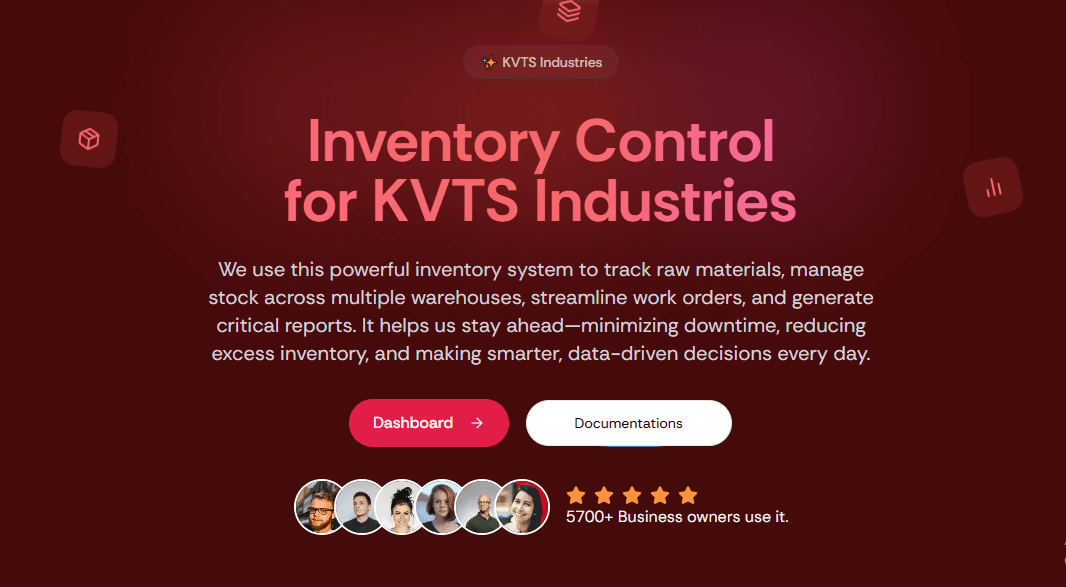
The landing page is your entry point to the WitchMart system. Here you'll find two main navigation options to access different parts of the application.
Login System
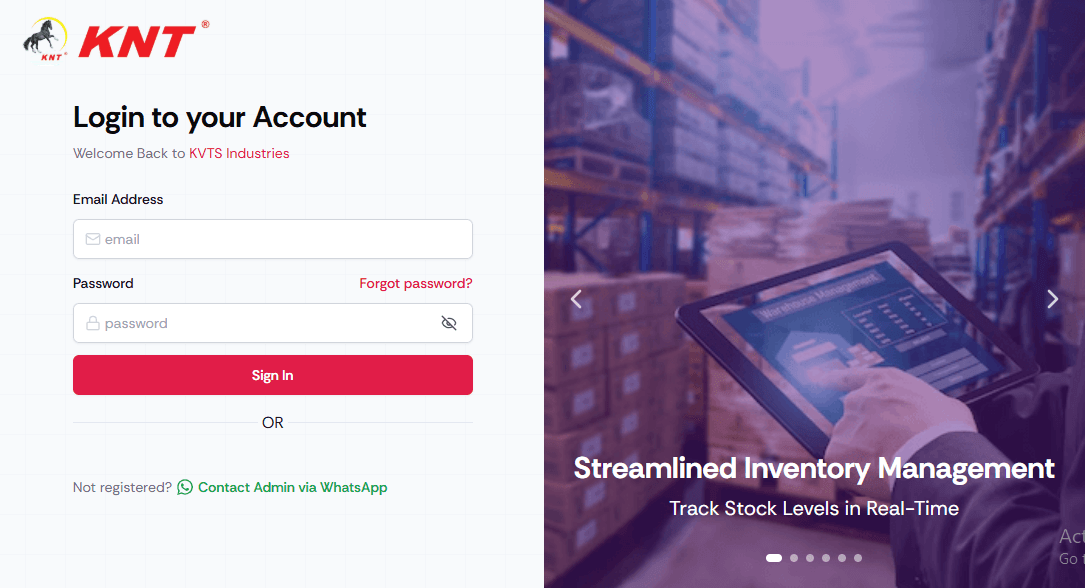
The login system ensures secure access to your inventory management system. All users must be authenticated before accessing any features.
User Login Process
When users log in successfully, they are redirected to the dashboard with permissions specifically allocated to their role by the administrator.
New User Registration
If a user is not registered, they should click the 'Contact Admin' button on the login page. All access to the software must go through the administrator for security purposes.
Password Reset
Users who forget their password can click 'Forgot Password' to reset it. It is advisable to use company-customized emails for all users to maintain security and professionalism.
Dashboard Overview
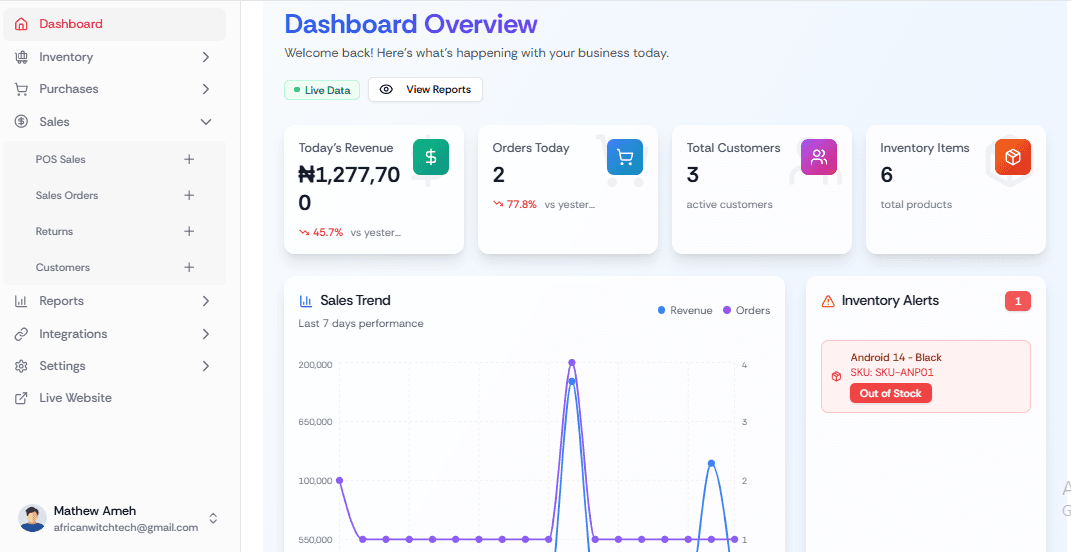
The dashboard provides a comprehensive overview of your business operations. Access is restricted to administrators and users specifically granted permission by the admin.
Live Data & Analytics
View real-time business metrics including Today's Revenue (compared to yesterday), Orders (today vs yesterday), Total Customers, Active Customers, and Inventory Items count.
Sales Trends & Performance
Monitor your Sales Trend over the last 7 days, track performance metrics, and identify patterns in your business operations.
Inventory Alerts & Insights
Stay informed with Inventory Alerts for low stock items, view Top Selling Products, and track Recent Activity across your system.
Inventory Management
Comprehensive inventory management system with items, categories, brands, units, and stock control features.
Inventory Items
Manage all your inventory items. It's recommended to create Categories, Brands, Units, Suppliers, and Locations before creating items. Once created, you can edit items to add detailed information.
Categories & Brands
Organize your inventory by creating categories and brands. These should be set up before adding individual items to ensure proper organization.
Units & Suppliers
Define measurement units and supplier information. Proper setup of these elements is crucial for accurate inventory tracking and purchasing.
Important: Deletion Rules
⚠️ WARNING: Once items have been linked to other records (like sales), they cannot be deleted, only edited. Items can only be deleted if they haven't been used in any transactions. Plan your inventory structure carefully.
Current Stock Management
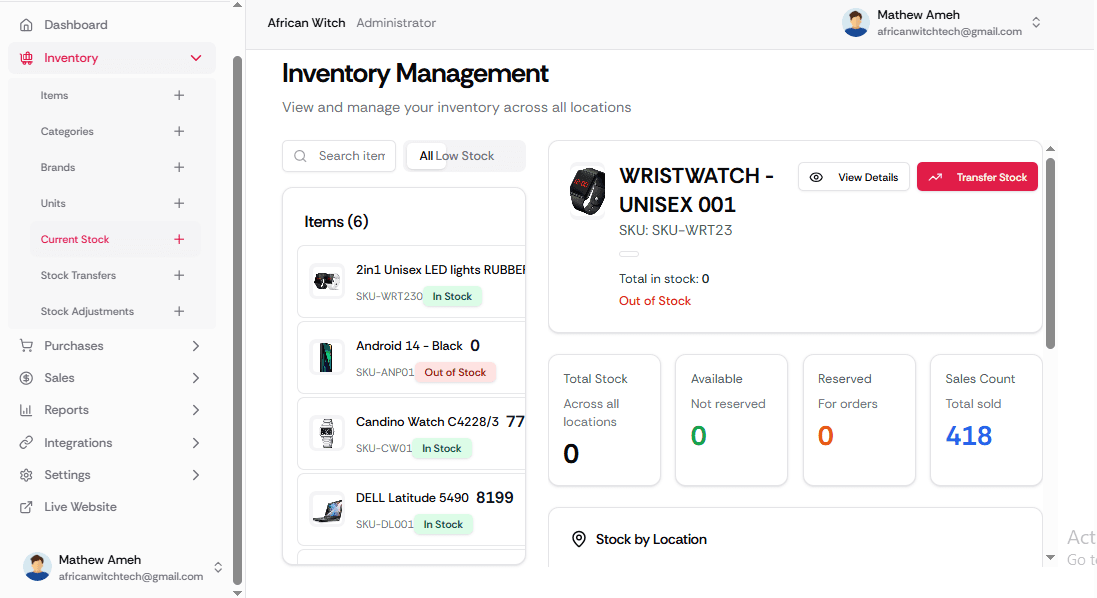
Monitor and manage your current stock levels with detailed information about every item in your inventory.
Stock Details View
Current Stock shows comprehensive details about every item including the number of times it has been sold, current value, pricing information, and availability. Select each item to view detailed information.
Stock Monitoring
Track inventory levels, monitor stock movement, and get insights into product performance through detailed stock analytics.
Stock Operations
Manage stock transfers and adjustments to maintain accurate inventory records.
Stock Transfers
Transfer stock between different locations. Note that transfers must be confirmed before inventory records are updated. Every transfer is recorded and stored in the database for audit purposes.
Stock Adjustments
Stock adjustments can only be performed by administrators or users assigned this role. When items are stolen, damaged, or lost, admins can adjust quantities and add notes explaining what happened to ensure inventory accuracy.
Purchase Management
Comprehensive purchase order system including supplier management and goods receipt tracking.
Purchase Orders
Create purchase orders after setting up suppliers. You must enter correct supplier details and send them an email to change status to 'Submitted'. Only then can you receive goods and update inventory.
Supplier Management
⚠️ IMPORTANT: If a supplier has no email, use your company email because an email must be sent before status can change to submitted. Ensure received items match what you're confirming. All inventory items must enter through Purchase Orders.
Goods Receipts
Goods Receipts maintain a complete history of all goods received. This provides an audit trail for all incoming inventory and helps track supplier performance.
Sales Management
Comprehensive sales system with POS and sales orders for different selling scenarios.
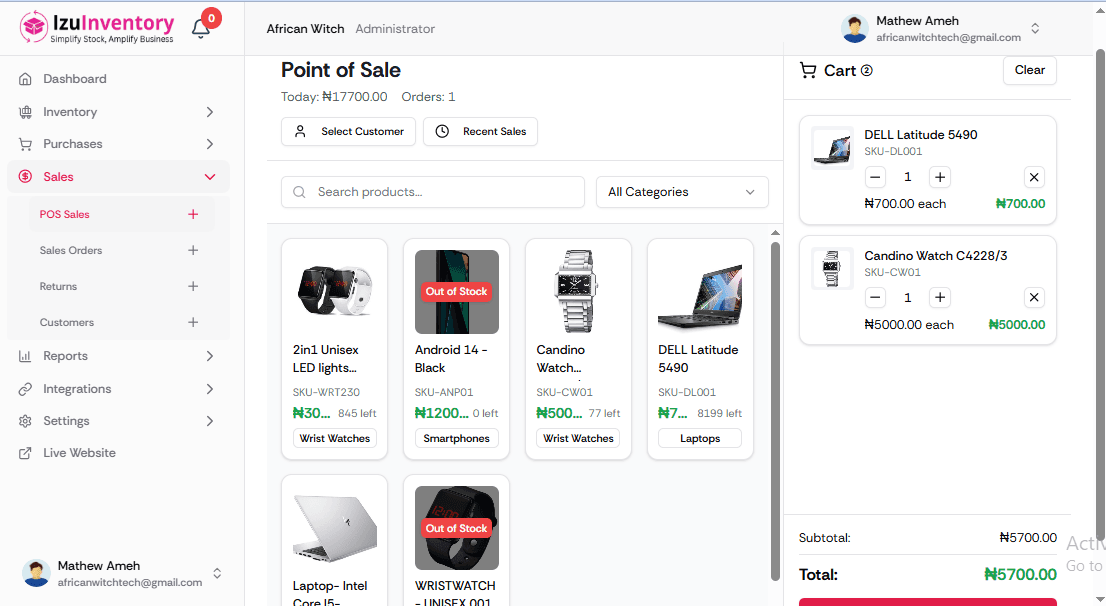
Point of Sale (POS)
Use POS for small quantity sales. Note that out-of-stock items cannot be sold through POS. When a POS sale is successful, you'll receive a popup modal confirmation.
Sales Orders
Use Sales Orders for selling many items at once. Unlike POS, you can sell products not currently in inventory through Sales Orders - the system will balance when products are added.
Customer Management
Manage customer information and track their purchase history. Customer data helps in generating reports and maintaining business relationships.
Invoice & Receipt System
Generate professional invoices and receipts for all sales transactions.
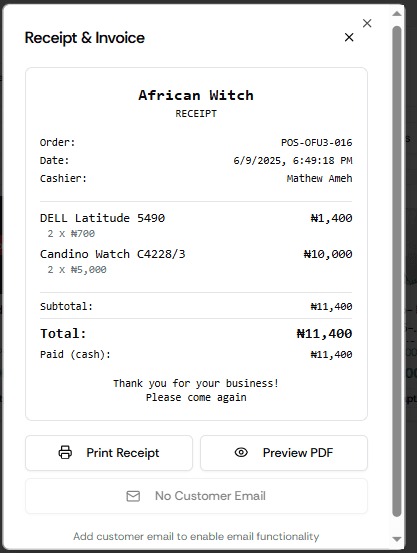
Invoice Generation
After successful sales, you can send invoices via email if the customer has an email address. Click 'Preview PDF' to generate and print customized PDFs that will be downloaded and opened in a new tab.
Receipt Management
Generate professional receipts for all transactions with company branding and detailed transaction information.
Reports & Analytics
Comprehensive reporting system that tracks all business activities and provides detailed analytics.

Customer Reports
Generate detailed reports by customer showing purchase history, preferences, and transaction summaries.
Product Reports
Analyze product performance with detailed reports showing sales trends, inventory turnover, and profitability metrics.
Summary Reports
Get comprehensive summaries of all activities in the software including sales, purchases, inventory changes, and financial metrics.
Integrations & API
Developer tools and API management for extending system functionality.
API Key Management
Manage API keys for system integrations and third-party applications. This section is designed for developers and future development needs.
Developer Tools
Access developer resources and tools for customizing and extending the system functionality.
System Settings
Configure system settings, manage users, and set up organizational structure.
Locations Setup
Configure different locations such as shops and warehouses. Proper location setup is essential for accurate inventory tracking across multiple sites.
Users & Invites
Administrators can invite users to manage the software. It's advisable to create roles and permissions before inviting users, as you must set location and role assignments during the invitation process.
Roles & Permissions
Set up roles and permissions for every role created. This is where administrators define what each user type can access and modify in the system.
Change Password
Users can change their passwords through the settings panel. Regular password updates are recommended for security.